Create an Order in the Dashboard
Use the dashboard when you want a guided, visual ordering flow. If you want an in-product walkthrough, enable the guided tour from the upper-right corner for a step-by-step tour of ordering functionality.
Quick Flow
- Open dashboard.clearsky.vision.
- Go to Order Data.
- Choose Polygon or Tiles / Minitiles.
- Define your AOI.
- Configure model, constellations, dates, frequency, storage, and API request settings.
- Add to cart, review estimate, and checkout.
Step 1: Choose Order Mode
- Polygon: Best when you need exact boundaries (draw on map or import/paste supported geometry formats).
- Tiles / Minitiles: Best when you want grid-based selection with lower cost per km2.
If you are unsure which mode fits best, see Choose an order type.
Step 2A: Define AOI in Polygon Mode
In Polygon mode, you can either:
- Draw directly on the map with Leaflet polygon or rectangle tools.
- Upload geometry files from the map import control (for example
GeoJSON,JSON,WKT,TXT,KML, and shapefile bundles, plus other supported GIS formats). - Paste supported text geometry formats directly in the import dialog (for example
WKT,GeoJSON, orJSON).
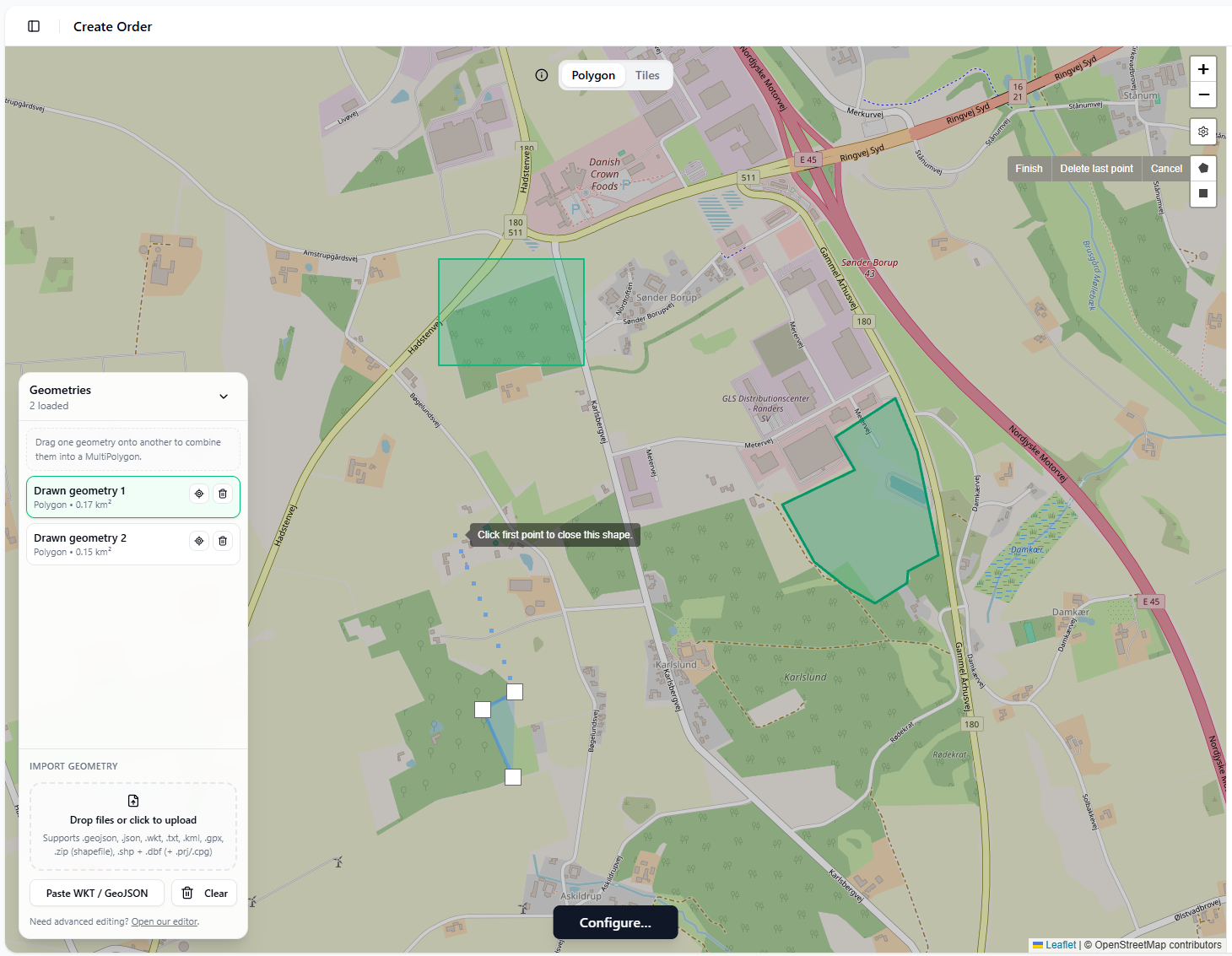
Screenshot: Polygon mode with AOI draw/import tools for custom boundaries.
For geometry rules and validation behavior, see Define an area with polygon ordering.
Step 2B: Define AOI in Tile / Minitile Mode
In Tiles / Minitiles mode:
- Click tiles to select them.
- Split into minitiles when you need finer grid control.
- Mix full tiles and minitiles in the same order.
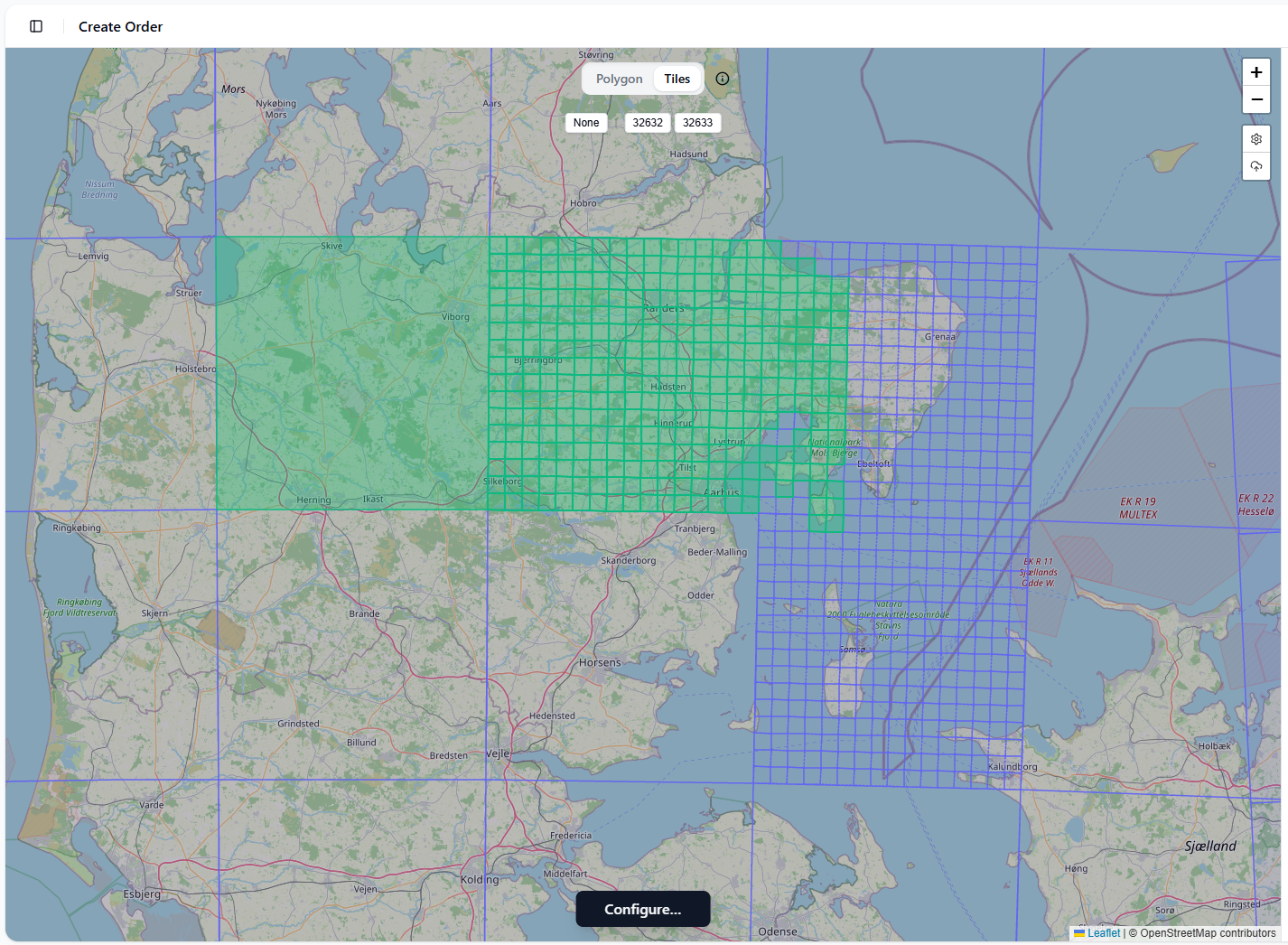
Screenshot: Tiles / Minitiles mode where you select full tiles and refine with minitiles.
For detailed tile/minitile guidance, see Define an area with tiles and minitiles ordering.
Step 3: Configure and Checkout
After AOI selection, configure:
- Model and satellite constellations.
- Date range (
From/To) and cadence (ImageFrequency, optionalReferenceDate). - Storage months and API request settings.
- Tile deduplication (tile/mini-tile orders) when you want to avoid re-ordering previously ordered tile/mini-tile coverage.
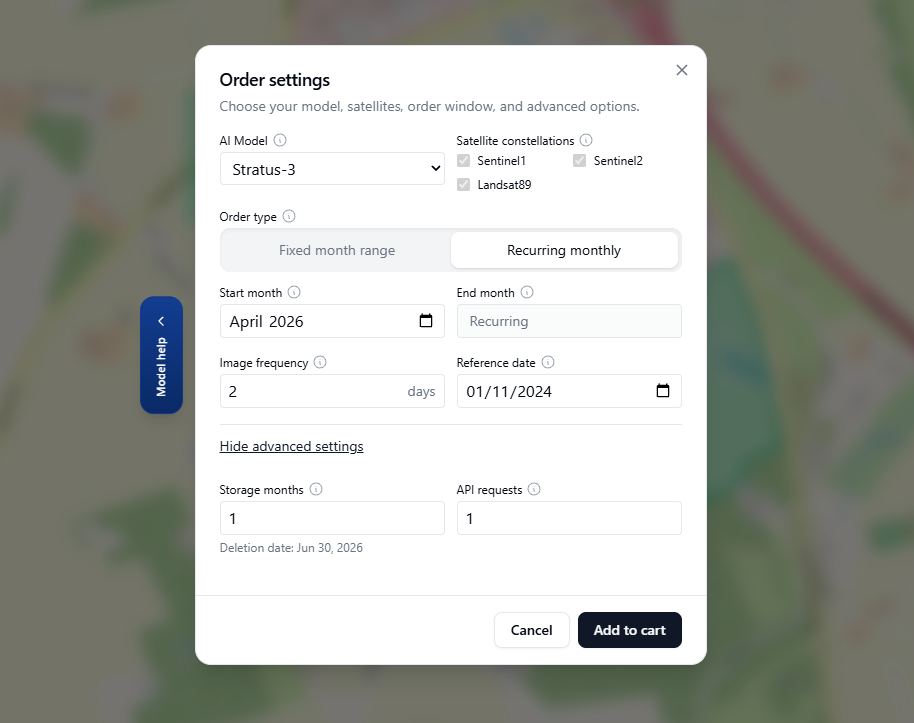
Screenshot: Configure dialog where you define model, constellation inputs, and date/cadence settings.
Then add the order to cart, review pricing, and complete checkout.
For deduplication behavior details and consistency guardrails, see Dashboard Guide / Order Data and Create an order with the API.
If you plan to publish or share outputs externally, keep in mind that constellation/source usage can trigger source-specific attribution requirements. See Source attribution and external use.
For full UI behavior details, see Dashboard Guide / Order Data.